The StockWatch extension for Chrome does three things:
- Makes a monitor from a click. Open a product page, click the price or the Add to basket button, and that is a monitor.
- Shows your alerts as they land. A notification with a sound, and a list of them in the extension.
- Checks pages from your own browser. For a shop that won't let our servers in, or a page you have to be signed in to see.
It runs in Chrome on a computer. Phones can't run extensions, so on a phone you make monitors on the site instead.
Get it
Put it in Chrome (once)
- Unzip the file you downloaded
- Go to
chrome://extensionsand switch on Developer mode, top right - Click Load unpacked and pick the
stockwatch-extensionfolder - Click the StockWatch icon in the toolbar and sign in
It isn't in the Chrome Web Store yet, which is why it goes in this way. Now and then Chrome may suggest switching developer mode extensions off. Leave them on and the extension keeps working.
If you can't see the StockWatch icon in Chrome's toolbar afterwards, click the puzzle piece next to the address bar and pin StockWatch.
Update it
Chrome can't update an extension that went in from a folder, so a new version is a fresh download. The newest is version 2.20.3, and the number at the bottom of the extension is the one you have. When yours is older, the extension card at the top of Settings says so.
Swap it for the one you have
- Unzip the file you downloaded
- Put the new
stockwatch-extensionfolder where the old one is, and say yes to replacing the files - Go to
chrome://extensionsand click the round arrow on the StockWatch card. The card should now say 2.20.3
You stay signed in and keep your alerts. If you can't remember where the old folder is, click Details on the StockWatch card and look for "Loaded from".
If the card still shows the old number, remove StockWatch there, click Load unpacked, pick the new folder and sign in again. Keep only one StockWatch on that page, or every alert will arrive twice.
Make a monitor by clicking
- Open the page you want to watch.
- Click the StockWatch icon, then Pick something to watch. A bar appears across the top of the page.
- Click the thing you want to watch. It gets a green outline, and the bar says what StockWatch will watch.
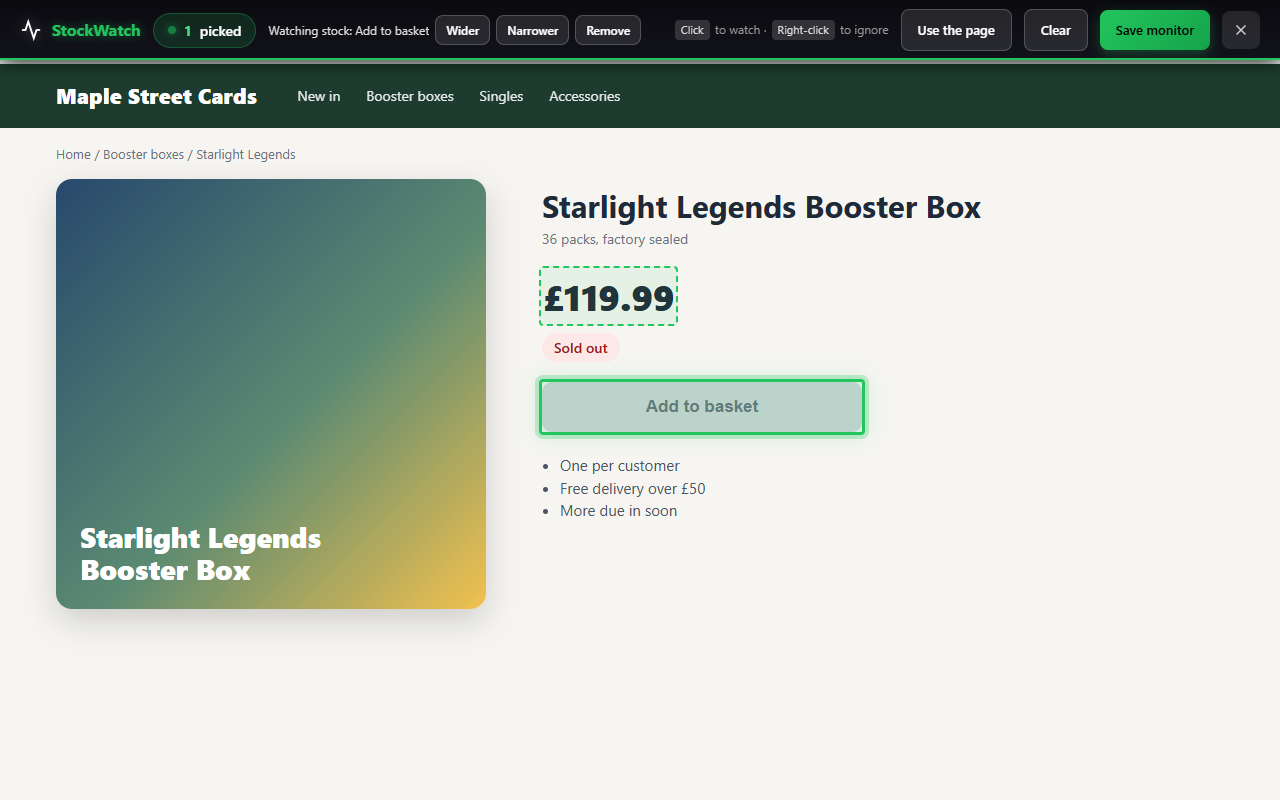
What you click decides what you hear about:
- A sold-out Add to basket button. StockWatch watches for it becoming available, so you hear when you can buy it and not every time the wording changes.
- A price. You hear when the price changes.
- Anything else. A stock label, a "coming soon" line, a release date. You hear when it says something different.
A few buttons on the bar help when a page is awkward:
- Wider and Narrower grow or shrink what you picked, for when the click caught too much or too little.
- Right-click something inside your pick to leave it out. A basket counter or a clock, say, that changes all the time and isn't what you care about.
- Use the page hands the page back to you so you can close a cookie banner or choose a size. Press it again to carry on picking.
- Click Save monitor. Give it a name, choose how often to check and where it runs.
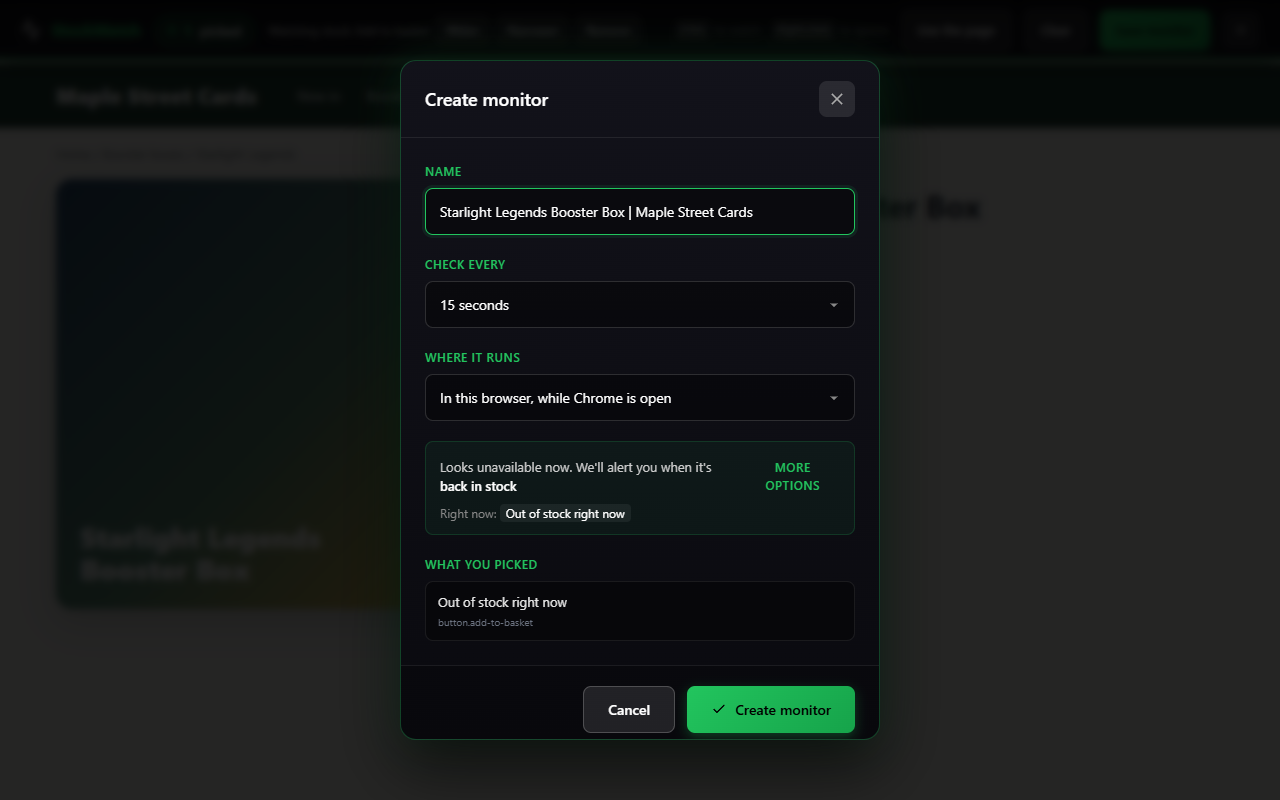
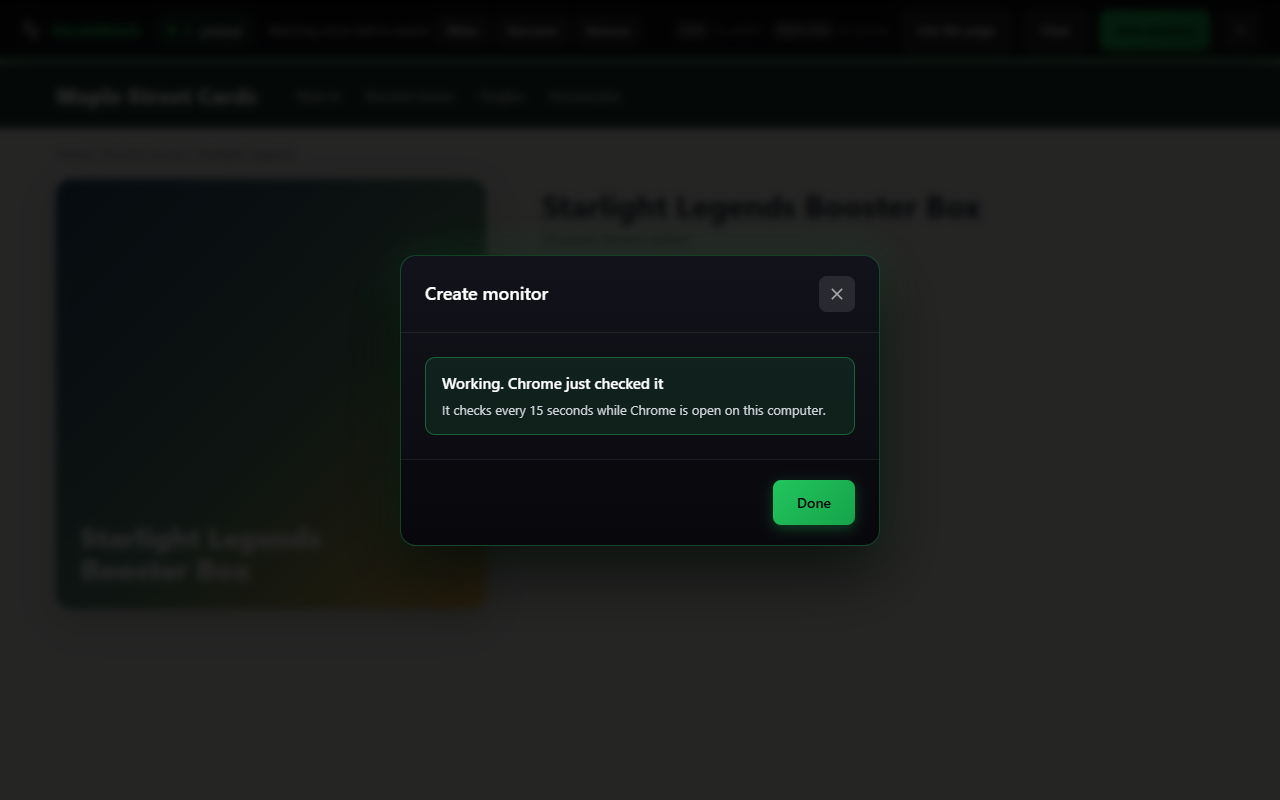
- StockWatch checks it there and then, and tells you what came of it. If it can't read what you picked, you find out now and not a week later.
Where a monitor runs
The save dialog asks where the monitor should run. Both give you the same alerts.
- On StockWatch, day and night. Our servers check the page round the clock, whether or not your computer is on. It counts as one of the cloud monitors on your plan.
- In this browser, while Chrome is open. Your own Chrome checks the page, as often as every 5 seconds on any plan. It only checks while Chrome is open on that computer. It is the one to choose for a shop that turns our servers away, or a page you have to be signed in to see.
If our servers can't read what you picked, the dialog says so when you save and offers Run it in this browser, which sorts it in one click.
A monitor that runs in your browser does its checking in a small Chrome window that the extension opens and keeps minimised. Leave it be. If you close it, it comes back at the next check.
Alerts
When a monitor finds a change you get a Chrome notification with a sound. Click it to go straight to the page. The Alerts tab in the extension keeps the list.
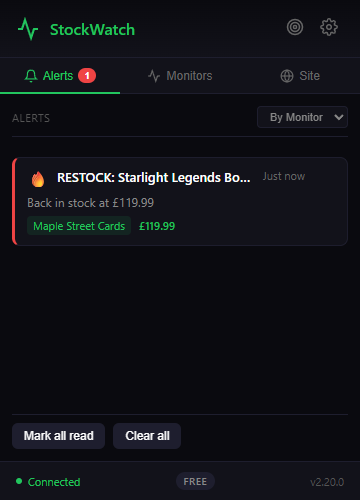
The extension can only tell you while Chrome is open on that computer. To hear anywhere else, add email, Discord or alerts on your phone in Settings. Setting up alerts goes through each one.
Your monitors, and what each status means
The Monitors tab lists every monitor on your account with a coloured dot. Pause, resume and check now are on each row.
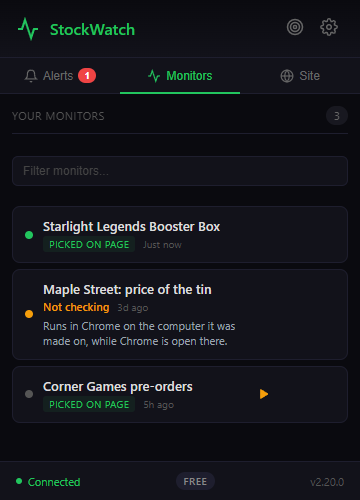
- Green, working. Checked on time and nothing is wrong.
- Amber, not checking. This one runs in Chrome on the computer it was made on, and Chrome there is closed or the extension is signed out. Open Chrome and it starts again. If it stays quiet for an hour we send you an alert about it. To have it checked while Chrome is closed, open it on the site and switch it to StockWatch servers.
- Amber, not running. The monitor is switched on, but your plan's cloud monitors are all in use, so it's waiting for one. The line underneath says what you can do.
- Red, not getting through. The last few checks failed. The line underneath says why, and what to do.
- Grey, paused. Press play to start it again.
When a shop asks if you're human
Some shops put a "prove you're human" check in front of a page. A monitor that runs in your browser can't answer that for you. The extension tells you when it happens, in a notification and on the monitor's row, each with an Open the page button.
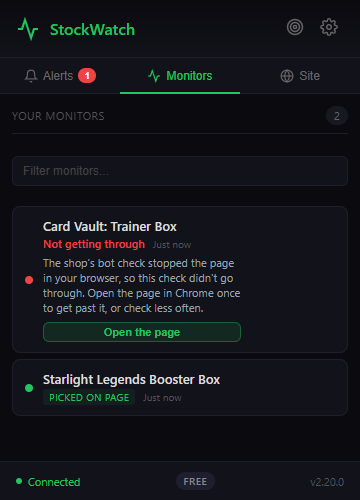
Press it, get past the check as you would on any visit, and the monitor carries on. Shops remember your browser for a while, so you may be asked again now and then. If it keeps happening, checking less often usually helps, and the monitor's card on the site offers slower speeds in one press.
When the shop changes its page
Shops redesign their pages. If the thing you picked has moved and still says the same, the monitor follows it. If StockWatch can't be sure it is the same thing, it stops and sends you a "Needs picking again" alert, because a monitor watching the wrong thing is worse than one that asks. Open the monitor on the site and pick it again, the same way you did the first time.
What the extension sends us
It only talks to stock-watch.co.uk. When you save a monitor it sends the page's address and title, what you picked and what it said at the time. A monitor that runs in your browser sends us the page it checks, so we can spot the change. It sends nothing from any other page you visit. The privacy policy has the detail.